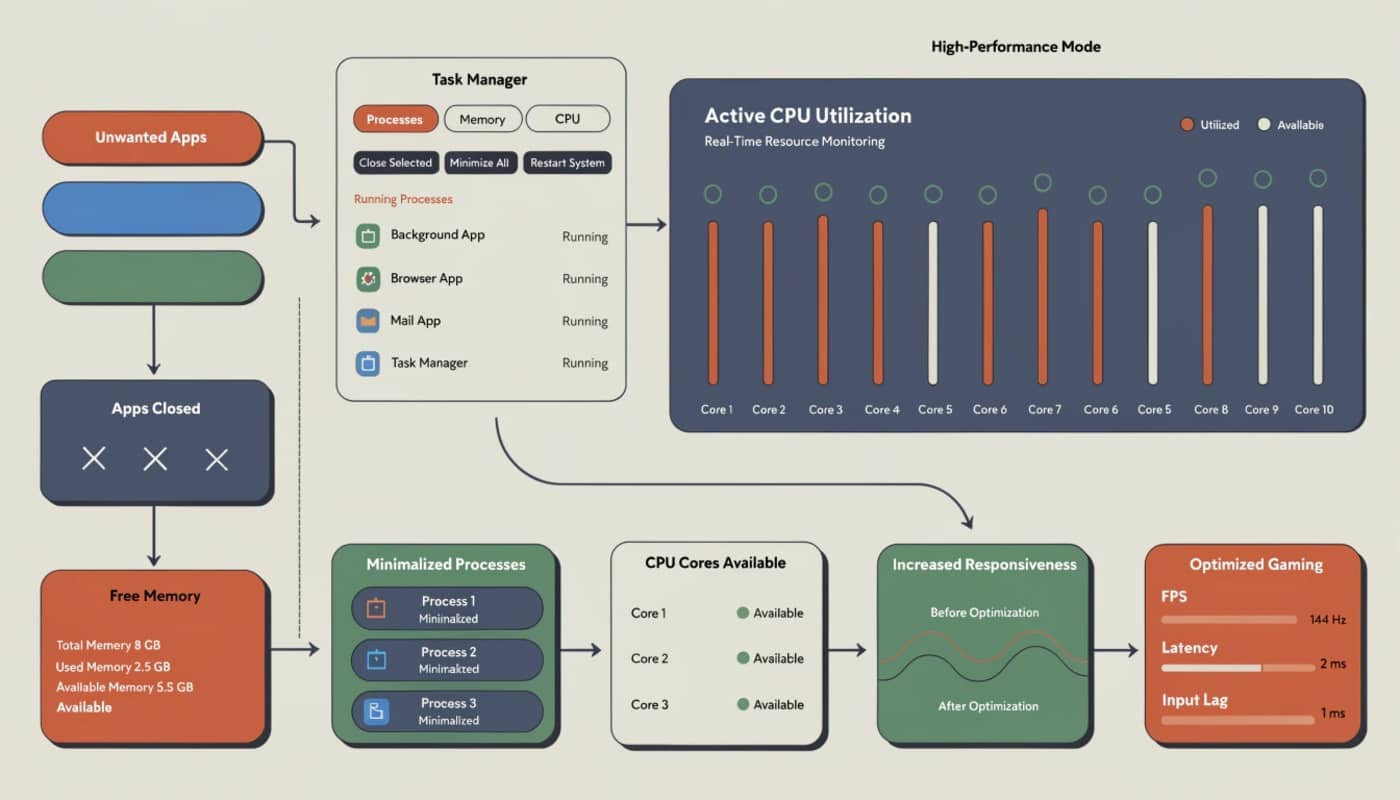
Your computer runs dozens of background processes at any given time, many of which serve no purpose during gaming sessions. These hidden programs consume RAM, steal CPU cycles, and compete for disk access, creating micro-stutters and frame drops. From Windows telemetry to auto-updaters, identifying which processes to disable requires understanding what each one does and whether it’s safe to stop. Some impact performance dramatically while others make minimal difference. Proper background process management ensures that your hardware resources are dedicated to your game rather than scattered across unnecessary tasks, forming an essential part of any well-optimized gaming system.
Understanding background processes and their impact
Background processes operate silently behind your games, handling everything from system maintenance to application updates. While some are essential for Windows functionality, many exist purely for convenience features that sacrifice gaming performance. The challenge lies in distinguishing critical processes from disposable ones.
Task Manager reveals the full scope of what’s running on your system. Press Ctrl+Shift+Esc to open it, then navigate to the Processes tab. Sort by CPU, Memory, or Disk to identify the biggest resource consumers. On a typical gaming PC, you’ll find 80-150 processes running simultaneously, though only 20-30 are truly essential.
Each background process claims a slice of your system resources. A browser tab might consume 200-500MB of RAM. Discord can use 300-400MB. RGB control software adds another 100-200MB. These seemingly small allocations compound quickly, leaving less memory available for game assets and potentially forcing your system to use slower disk-based virtual memory.
CPU impact matters more than raw usage percentages suggest. A process using 2-3% CPU doesn’t sound significant, but modern games require consistent CPU access for physics calculations, AI routines, and draw call processing. When multiple background processes compete for CPU time, they create scheduling delays that manifest as stuttering and frame time spikes.
Disk access represents another hidden bottleneck. Windows Search indexing your drives or Windows Update downloading files can saturate disk bandwidth, especially on mechanical hard drives. SSDs handle concurrent operations better but still suffer when multiple processes hammer them simultaneously. Games loading new areas or streaming textures become victims of this contention.
Network bandwidth seems abundant with modern broadband, but background processes waste it on activities irrelevant to gaming. Cloud backup services uploading files, streaming software downloading updates, and Windows telemetry sending diagnostic data all compete with your game’s multiplayer traffic. This creates packet loss and latency spikes that ruin competitive gaming experiences.
Identifying safe-to-disable processes
Not all background processes can be safely terminated. Windows requires certain core processes to function, and stopping them causes system instability or crashes. Learning to distinguish essential from disposable processes protects your system while maximizing gaming performance.
System processes typically have descriptive names and run under the “NT AUTHORITY\SYSTEM” or “LOCAL SERVICE” user accounts. Critical examples include csrss.exe (Client Server Runtime), dwm.exe (Desktop Window Manager), and services.exe. Never terminate these processes. They’re fundamental to Windows operation and killing them forces an immediate system restart or worse.
User processes run under your account name and represent applications you’ve installed or that came bundled with Windows. These are your primary optimization targets. Examples include browser processes, chat applications, game launchers, and manufacturer utilities. Most can be safely closed during gaming sessions without affecting system stability.
Third-party services often install alongside software and run constantly. Nvidia Container processes support GeForce Experience features but consume resources even when not streaming or recording. Adobe services run continuously after installing Creative Cloud applications. These services rarely need to operate during gaming and are safe to disable.
Publisher-specific processes come from software vendors checking for updates or collecting analytics. Microsoft Office Click-to-Run, Google Update Service, and Adobe Update Service represent typical examples. They serve no immediate function and only activate periodically, making them ideal candidates for disabling.
Hardware control software manages peripherals and components. RGB lighting controllers, mouse configuration utilities, and fan control software often need to stay active to maintain your settings. However, some can be configured to apply settings then exit, freeing resources while retaining your customizations.
Windows built-in process management
Windows includes several built-in processes that consume substantial resources. Understanding what each does helps you decide which to disable and how to do it safely.
Windows Search constantly indexes your files for faster searching. The SearchIndexer.exe process scans drives in the background, consuming disk bandwidth and CPU cycles. For gaming PCs, the performance cost outweighs the benefit of slightly faster file searches. Disable it by typing “services.msc” in the search bar, finding “Windows Search,” right-clicking, selecting Properties, and setting Startup type to “Disabled.”
Superfetch, now called SysMain in Windows 10 and 11, preloads frequently used applications into RAM. While intended to improve responsiveness, it often causes disk thrashing and RAM pressure on gaming systems. Games benefit more from having that RAM available for their own use. Disable SysMain through Services by setting it to “Disabled” or “Manual.”
Windows Update downloads and installs updates automatically, often at inconvenient times. While keeping Windows updated is important for security, the download process can saturate your internet connection and the installation preparation consumes significant disk and CPU resources. Configure Windows Update to download during specific hours through Settings > Windows Update > Advanced options > Active hours.
Runtime Broker manages permissions for Windows Store apps and can consume hundreds of megabytes of RAM while doing very little. On gaming systems that don’t use Windows Store apps extensively, this process is unnecessary. While you can’t permanently disable it without registry modifications, closing it through Task Manager provides temporary relief during gaming sessions.
Cortana and Search processes run constantly even if you never use voice commands or search features. These processes can be disabled through Group Policy Editor (gpedit.msc) on Windows Pro editions. For Windows Home, third-party tools like O&O ShutUp10 provide similar functionality with user-friendly interfaces.
Windows Defender performs real-time scanning of files as they’re accessed. While essential for security, it can cause stuttering when games load new assets. Add your game directories to Windows Defender’s exclusion list through Settings > Update & Security > Windows Security > Virus & threat protection > Manage settings > Exclusions. This prevents scanning of game files during gameplay while maintaining protection for other areas.
Telemetry services collect usage data and send it to Microsoft. Connected User Experiences and Telemetry service, DiagTrack, and similar processes consume bandwidth and CPU. Reduce telemetry through Settings > Privacy > Diagnostics & feedback, setting it to “Basic” or “Security” if available. For more aggressive control, use the Group Policy Editor to disable telemetry entirely.
Application-specific background processes
Third-party applications frequently install background processes that run constantly, even when the main application isn’t in use. Managing these recovers substantial system resources.
Web browsers are notorious resource consumers. Each open tab runs as a separate process, and modern sites with video or animations consume hundreds of megabytes of RAM per tab. Chrome, Edge, and Firefox also run background processes even when closed to enable features like push notifications and faster startup. Close browsers entirely before gaming or use browser task managers to identify and close specific resource-heavy tabs.
Game launchers from Steam, Epic Games Store, Origin, GOG Galaxy, and Battle.net remain active after launching games. Each consumes 100-300MB of RAM and performs background tasks like friend list updates and achievement tracking. Configure launchers to exit after starting games through their settings menus. Steam offers this through Settings > Interface > “Close Steam client to tray when I close the window” (disable this) and check “Close Steam when closing the game.”
Communication software like Discord, TeamSpeak, and Skype run persistently to receive messages and calls. Discord alone can consume 300-500MB of RAM with hardware acceleration enabled. If you’re not actively communicating during a gaming session, close these applications entirely. When you need voice chat, use in-game voice systems when available or optimize Discord by disabling hardware acceleration and reducing quality settings.
Cloud storage services continuously monitor folders and upload changes. OneDrive, Dropbox, Google Drive, and iCloud sync processes consume disk bandwidth and CPU checking for file modifications. Pause syncing during gaming sessions through each service’s system tray menu. Most offer “Pause syncing” options for 2, 8, or 24 hours.
Media streaming services run background processes even when not actively streaming. Spotify, Apple Music, and similar applications cache data and check for updates constantly. Close them before gaming unless you’re actively using them. For background music, consider lightweight alternatives or offline music files that don’t require active streaming processes.
Graphics card utilities provide convenient features but at a resource cost. GeForce Experience, AMD Software, and manufacturer-specific tools like MSI Afterburner or EVGA Precision run multiple background processes. GeForce Experience alone spawns NVIDIA Container, Telemetry, and Web Helper processes. If you’re not using recording, streaming, or instant replay features, close these utilities. They can be configured to start manually rather than with Windows.
Antivirus and security software beyond Windows Defender adds another layer of background scanning. Third-party solutions like Norton, McAfee, and Avast perform continuous monitoring that impacts performance during gaming. Consider whether you need third-party antivirus or if Windows Defender provides sufficient protection. If keeping third-party solutions, add game directories to exclusion lists and enable gaming modes that reduce scanning intensity.
Manufacturer bloatware comes preinstalled on many systems. Dell SupportAssist, HP Support Assistant, Lenovo Vantage, and similar utilities check for driver updates and system health constantly. These rarely provide value during gaming and can be uninstalled or disabled through Services. Check each service’s dependencies before disabling to avoid unintended consequences.
Startup program management
Startup programs launch automatically when Windows boots, consuming resources from the moment you log in. Aggressive startup management ensures only essential applications run automatically.
Windows Task Manager provides startup management through the Startup tab. Right-click the taskbar, select Task Manager, and navigate to Startup. This shows every program configured to launch at boot along with its startup impact rating. High impact programs significantly increase boot time and consume substantial resources.
Disable unnecessary startup items by right-clicking them and selecting “Disable.” This doesn’t uninstall programs or prevent manual launching. It simply stops automatic startup. Common candidates for disabling include chat applications, torrent clients, note-taking applications, and manufacturer utilities that aren’t essential for hardware function.
RGB control software often starts automatically but only needs to run long enough to apply lighting profiles. Some utilities support applying profiles then exiting. Check your RGB software settings for options like “Apply settings and minimize to system tray” or “Exit after applying profile.” This gives you custom lighting without permanent resource consumption.
Update checkers from various applications serve no purpose at startup. Java Update Scheduler, Adobe Reader Speed Launcher, and similar utilities can be safely disabled. You can manually check for updates periodically rather than having these processes consume resources constantly.
System tray applications accumulate over time as you install software. Many applications add system tray icons for quick access but run full background processes to support them. Evaluate each system tray icon and disable auto-start for ones you rarely use. You can always launch them manually when needed.
Registry-based startup entries persist even after uninstalling software. Use tools like Autoruns from Microsoft Sysinternals to view and disable all startup locations, including registry entries, scheduled tasks, and services. This tool provides more comprehensive control than Task Manager but requires understanding what each entry does before disabling.
Scheduled tasks represent another automatic startup mechanism. Windows Task Scheduler runs maintenance tasks, update checks, and optimization routines. Open Task Scheduler, review the Task Scheduler Library, and disable gaming-irrelevant tasks. Common targets include Adobe Acrobat Update Task, Google Update tasks, and manufacturer diagnostic tools.
Performance monitoring and process impact
Understanding which processes actually impact gaming performance helps prioritize optimization efforts. Not all background processes affect performance equally.
Performance monitoring tools reveal real-time resource consumption. Windows Task Manager provides basic monitoring, but tools like Process Explorer and Process Monitor from Microsoft Sysinternals offer deeper insight. These show exact CPU time, memory usage, disk I/O rates, and network activity per process.
Baseline measurements establish your system’s normal state. Before making changes, run games while monitoring resource usage with Task Manager or Performance Monitor. Note CPU usage, RAM consumption, disk activity, and frame rates. This provides comparison points for evaluating optimization effectiveness.
Frame time analysis reveals stuttering causes better than average FPS measurements. Use tools like MSI Afterburner with Rivatuner Statistics Server to display frame time graphs. Spikes in frame time correlate with background process activity. Closing processes and observing frame time improvements confirms which processes actually impact performance.
CPU affinity settings let you reserve CPU cores exclusively for gaming. Right-click a game process in Task Manager, select “Set affinity,” and assign it to specific cores. Then set background processes to use different cores. This prevents background processes from interrupting game threads, though Windows’ scheduler generally handles this adequately on modern multi-core processors.
Process priority adjustments tell Windows to favor certain applications when allocating resources. Right-click a game process in Task Manager, select “Set priority,” and choose “High” or “Above normal.” This makes Windows prioritize game processes over background tasks during resource contention. Avoid setting priority to “Realtime” as this can cause system instability.
Resource usage patterns vary by game type. Open-world games with continuous asset streaming are more sensitive to disk I/O interference. Competitive multiplayer games suffer more from network bandwidth competition. CPU-intensive strategy games feel background CPU usage more acutely. Tailor your process management to your game library’s specific needs.
Long-term monitoring identifies periodic processes that aren’t immediately obvious. Some processes activate hourly or daily for maintenance tasks. Windows Defragmentation, Backup, and Update checks follow schedules rather than running constantly. Review Task Scheduler for these periodic tasks and reschedule them outside gaming hours.
Creating gaming-optimized system states
Rather than manually managing processes before each gaming session, create automated solutions that switch your system between normal and gaming modes.
Batch scripts automate process termination with simple text files. Create a .bat file containing commands like “taskkill /F /IM discord.exe” for each process you want to close. Save this file and run it before gaming sessions. More sophisticated scripts can save and restore process states, launching them again after gaming.
Third-party optimization tools provide one-click solutions. Razer Cortex, Game Fire, and Wise Game Booster offer pre-configured process management profiles that close unnecessary applications and services when activated. These tools also provide performance monitoring and system optimization features beyond process management.
Windows Game Mode represents Microsoft’s built-in gaming optimization. Enable it through Settings > Gaming > Game Mode. While its process management is less aggressive than manual approaches, it prevents Windows Update interruptions, reduces background task priority, and dedicates more resources to foreground games automatically.
Custom power plans optimize CPU behavior for gaming. Create a new power plan through Control Panel > Power Options > Create a power plan. Set minimum processor state to 100% and configure PCI Express Link State Power Management to “Off.” This prevents the CPU from throttling and ensures maximum performance during gaming.
Registry modifications provide deeper control over Windows behavior. Disabling Windows features like Timeline, Activity History, and Background Apps through registry edits reduces background processing. However, registry changes require careful attention to avoid system instability. Back up your registry before making modifications and research each change thoroughly.
Scheduled profiles switch system configurations based on time of day. Windows Task Scheduler can run scripts at specific times, automatically transitioning between work and gaming configurations. Combine this with game detection to trigger optimizations when specific game executables launch.
Maintaining system performance over time
Process management isn’t a one-time optimization. Systems accumulate new background processes as you install software and Windows updates introduce new services.
Regular audits prevent process creep. Monthly reviews of startup programs, services, and Task Manager process lists catch new unwanted additions. After installing new software, immediately check what background processes it added and disable unnecessary ones.
Software updates sometimes re-enable disabled services and startup programs. After major Windows updates, review your optimization settings. Third-party software updates can reset preferences to defaults, undoing your configurations. Maintain a checklist of disabled services and startup programs for quick post-update verification.
Uninstalling unused software is the most effective process management. Every application potentially adds background processes, services, and scheduled tasks. If you haven’t used software in three months, consider removing it entirely. This prevents resource consumption and eliminates maintenance overhead.
System restore points provide safety nets for optimization experiments. Before making aggressive changes to services or startup programs, create a restore point through System Protection. If optimizations cause stability issues, roll back to the working state without manually undoing changes.
Clean Windows installations every 12-18 months provide fresh starts. Over time, even well-maintained systems accumulate configuration drift and residual software remnants. Backing up important data and performing clean Windows installs eliminates all accumulated background process bloat in one operation.
Background process management directly impacts gaming performance by freeing RAM, CPU, and disk resources for your games. The difference between a cluttered system running 120 background processes and an optimized one running 40 can mean 10-20% better frame rates and eliminated stuttering.
Start with obvious targets like browsers, chat applications, and game launchers. These provide immediate, substantial improvements with zero risk. Then tackle Windows built-in processes like search indexing and telemetry. Finally, address services and startup programs for deeper optimizations.
Not every system needs aggressive optimization. High-end gaming rigs with 32GB RAM and modern CPUs can handle more background processes without noticeable impact. Budget systems with 8GB RAM and older processors benefit dramatically from every megabyte and CPU cycle recovered.
Balance convenience against performance. Disabling every possible process maximizes gaming performance but makes everyday computer use less convenient. Find your personal equilibrium between optimization and usability. Perhaps keep Discord running but close browsers and cloud services.
Experiment systematically rather than disabling everything simultaneously. This lets you identify which specific processes impact your system most. Some processes that theoretically consume resources may not actually affect your gaming performance noticeably.
Document your optimization settings for future reference. When you inevitably need to reinstall Windows or troubleshoot issues, having a record of which services you disabled and why saves hours of reconfiguration time.
The goal isn’t eliminating every background process but ensuring your hardware dedicates maximum resources to gaming when it matters. A well-managed system feels faster, maintains higher frame rates, and delivers more consistent performance than one running dozens of unnecessary background tasks.