Your PC is running Arknights Endfield but something feels off. Maybe the frame rate dips during big fights or the visuals look blurry even though your hardware should handle more. The good news is that the default settings are not always the best settings and a few smart tweaks can completely change how the game feels. This guide covers the best graphics settings for Arknights Endfield on PC so you get stable performance and sharp visuals at the same time. ▶ Download Is Completely Free


Why graphics settings matter so much in Arknights Endfield
Arknights Endfield runs on Unreal Engine 5 which is known for delivering stunning visuals but also for being demanding on hardware. The game combines real-time action combat with a large open world and a factory simulation system that keeps running in the background even while you are exploring. That combination puts constant pressure on both your GPU and your CPU at the same time.
The default graphics preset the game loads on first launch is not always calibrated for your specific hardware. It might enable effects that look impressive but cost far more performance than they are worth. The goal here is not to make the game look worse. It is to cut the expensive effects that you barely notice while keeping everything that actually makes Talos-II look great.
Before touching any settings Arknights Endfield gives you two very useful meters at the top of the Performance and Graphics section: Device Load and Estimated GPU Memory Usage. Check these first. If either meter is sitting at three bars or above your system is already under stress and the settings below will help you bring that down to a stable range.
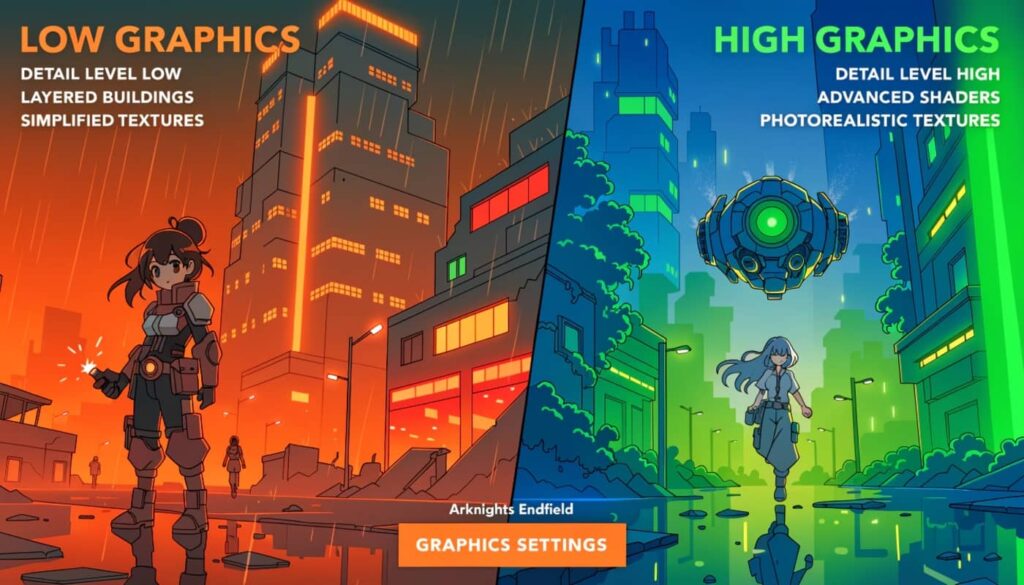
The first thing to change: set graphics quality to custom
The single most important thing you can do before anything else is switch Graphics Quality from a preset like Medium or High to Custom. Presets bundle together a mix of settings and some of them enable effects that your hardware does not need for a great-looking game. Custom mode gives you full control over each individual option so you can keep what matters and drop what does not.
Graphics presets should always be set to Custom. Presets tend to enable effects that are not necessary for smooth gameplay and can impact performance more than expected.
Best graphics settings for Arknights Endfield on PC
The table below covers the recommended settings for a balanced PC experience targeting stable 60 FPS on mid-range hardware. Players on high-end systems can push shadow quality and texture detail higher while keeping everything else the same.
| Setting | Recommended Value | Why |
|---|---|---|
| Graphics Quality | Custom | Gives you full control over every option individually |
| Resolution | Native monitor resolution | Lowering resolution causes blurry visuals with minimal FPS gain |
| Frame Rate Cap | 60 FPS or 120 FPS if stable | Pick a cap you can hold in combat not just in menus |
| Vertical Sync | Off | Adds input lag and reduces responsiveness in combat |
| Shadow Quality | Low to Medium | One of the biggest FPS drains especially in open areas |
| Texture Quality | High | Very low performance cost with a major visual impact |
| Ambient Occlusion | Medium or Off | Hard to notice during gameplay and expensive to render |
| Anti-Aliasing | DLSS or TAAU | Much better performance than TAA with similar or better image quality |
| Post-Processing | Medium | Ultra adds almost no visible improvement at a noticeable cost |
| Scene Details | Medium | High scene detail increases CPU load significantly in open world areas |
| Vegetation Details | Low to Medium | One of the most CPU-heavy settings in outdoor exploration zones |
| Render Scale | 100% or lower if needed | Drop this before lowering native resolution for a cleaner image |
DLSS and upscaling: the biggest free performance upgrade on PC
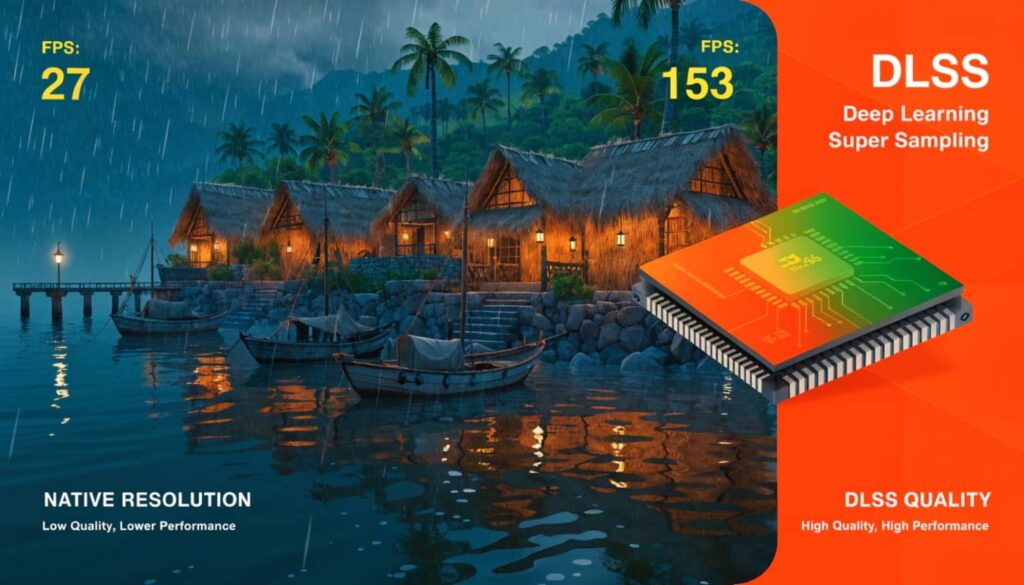
If you have an Nvidia GPU this is the most impactful change you can make in the entire settings menu. Arknights Endfield supports DLSS 4 with Multi Frame Generation and it makes a dramatic difference on supported hardware. With DLSS Balanced mode enabled on a mid-range RTX card you can expect a significant FPS boost with minimal loss in image sharpness.
The recommended DLSS preset for most players is Balanced. It gives you the best mix of image quality and performance without the softness that Performance mode can introduce. If you have an RTX 50 Series card you can go further and enable Frame Generation which creates additional frames between real ones for a much smoother feel during fast combat.
If you have an AMD GPU use FSR instead. It is not quite as sharp as DLSS but it still delivers a real performance improvement over running without any upscaling. For players without either option TAAU is the next best choice built into the game itself.
DLSS Balanced provides the best mix of image quality and performance. Frame Generation adds input latency and is less recommended if you prioritize responsiveness in combat.
What settings hurt performance the most
Not every setting costs the same amount of performance. Some settings look great and run cheap. Others add almost nothing visually while taking a serious chunk out of your frame rate. These are the three biggest offenders to watch out for in Arknights Endfield.
Shadow quality
Shadow quality is consistently the single most GPU-intensive setting in Arknights Endfield especially during outdoor exploration on Talos-II where large draw distances mean the engine is casting shadows across a wide area at the same time. Drop this to Low or Medium before touching anything else if your frame rate is unstable. You will barely notice the visual difference during combat but you will definitely notice the extra frames.
Scene details and vegetation
These two settings control how much environmental detail and foliage the game renders around you. They sound like visual settings but they actually put a heavy load on your CPU because the game has to calculate what to render as you move through the world. If your CPU is the bottleneck in your system lowering Scene Details and Vegetation Details is the most direct fix for open-world stuttering.
Ambient occlusion
Ambient occlusion adds subtle shading around objects and corners to make the world feel more grounded and three-dimensional. It looks nice in screenshots but in motion during fast-paced combat it is nearly invisible. Turning it to Medium or Off gives you a useful FPS boost for almost no perceivable visual cost.
Frame rate target 60 FPS or 120 FPS?
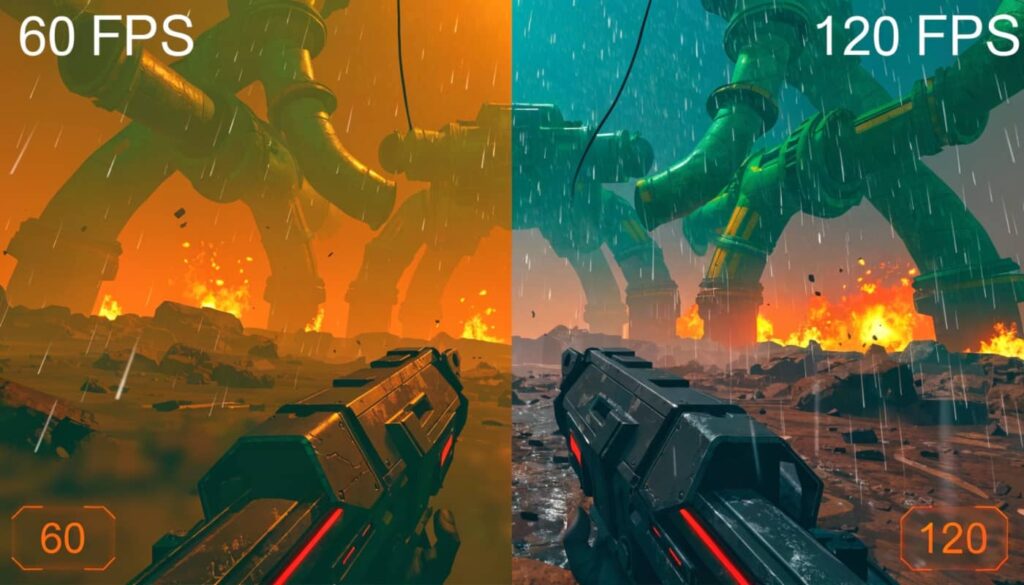
This depends entirely on your monitor and your hardware. If your monitor runs at 60Hz then capping at 60 FPS is the right call and you should focus all your settings on keeping that cap stable even during the most demanding combat encounters. A locked 60 FPS always feels better than an unstable 80 FPS that dips to 45 during boss fights.
If your monitor runs at 144Hz or higher and your GPU comfortably handles the game at your chosen settings then set the cap to 120 FPS. Arknights Endfield supports up to 120 FPS natively on PC and the difference in combat responsiveness between 60 and 120 is genuinely noticeable when you are dodging attacks and switching between Operators mid-fight. Do not target 144 FPS or above unless your hardware holds that number consistently in the most demanding zones.
DirectX 12 or DirectX 11 which should you use
Arknights Endfield defaults to DirectX 12 which delivers the best performance on modern GPUs with up-to-date drivers. Most players should leave this as is. However if you are experiencing crashes at launch or random instability during gameplay switching to DirectX 11 in the settings menu is worth trying. It often improves stability on older GPUs and on systems where DX12 is causing driver-related issues.
Windows and system settings that help outside the game
The graphics settings inside the game are only part of the picture. A few Windows-level changes can give you extra performance headroom without changing how the game looks at all.
- Set your Windows power plan to High Performance or Ultimate Performance so your CPU is not throttling during gameplay
- Open Nvidia Control Panel and set Power Management Mode to Prefer Maximum Performance for your GPU
- Close background applications like browsers Discord and streaming software before launching the game
- Make sure Arknights Endfield is installed on an SSD not a hard drive as texture streaming mid-game causes stutters on HDDs
- Keep your GPU drivers updated since Nvidia and AMD regularly release optimizations for major new game launches
One last tip that many players overlook: if your frame rate starts degrading after a long play session restart the game. Arknights Endfield can build up memory pressure over long sessions especially if you are running browser tabs or recording software in the background. A fresh relaunch often restores the smooth performance you had at the start of your session. And if you have not started playing yet downloading Arknights Endfield is completely free with no upfront cost on PC.

Getting the best graphics settings in Arknights Endfield on PC comes down to one simple principle: stable frames beat flashy effects every time. Switch to Custom quality enable DLSS if you have an Nvidia GPU drop shadow quality first and keep your textures high. Those four steps alone will transform your experience on Talos-II. Try these settings drop your GPU model in the comments and let us know what frame rate you are hitting.